
Advanced Conditional Access
Introduction
Conditional Access is the heart of identity security in every Microsoft tenant. In my previous blog post I explained fundamental concepts and how to get started with it:
 Niklas Tinner
Let's have a look at advanced scenarios with Conditional Access in this post! My ambition is to show powerful features that sometimes fly under the radar. I will explain, show configs and present a solution idea for each advanced CA scenario.
TL;DR
- Authentication Strengths - Require certain methods for MFA (e.g. phishing-resistant only)
- Authentication Context - Require additional authentication & authorization for admin actions
- Protected Actions - Protect sensible admin tenant tasks
- Privileged Identity Management (PIM) - Just-in-time and & just-enough access for admin roles
- Compliant Device Signal - Rely on Intune trust signal and device security
- Device Filters - Filter for device attributes
- Identity Protection - Auto-detection of risk signals for sign-ins and users
- Token Protection - Bind token to avoid token replay attacks
- Continuous Token Evaluation (CAE) - Strictly enforce location changes
- Session Control with Defender for Cloud Apps - Monitor and apply session policies with Defender integration
Authentication Strengths
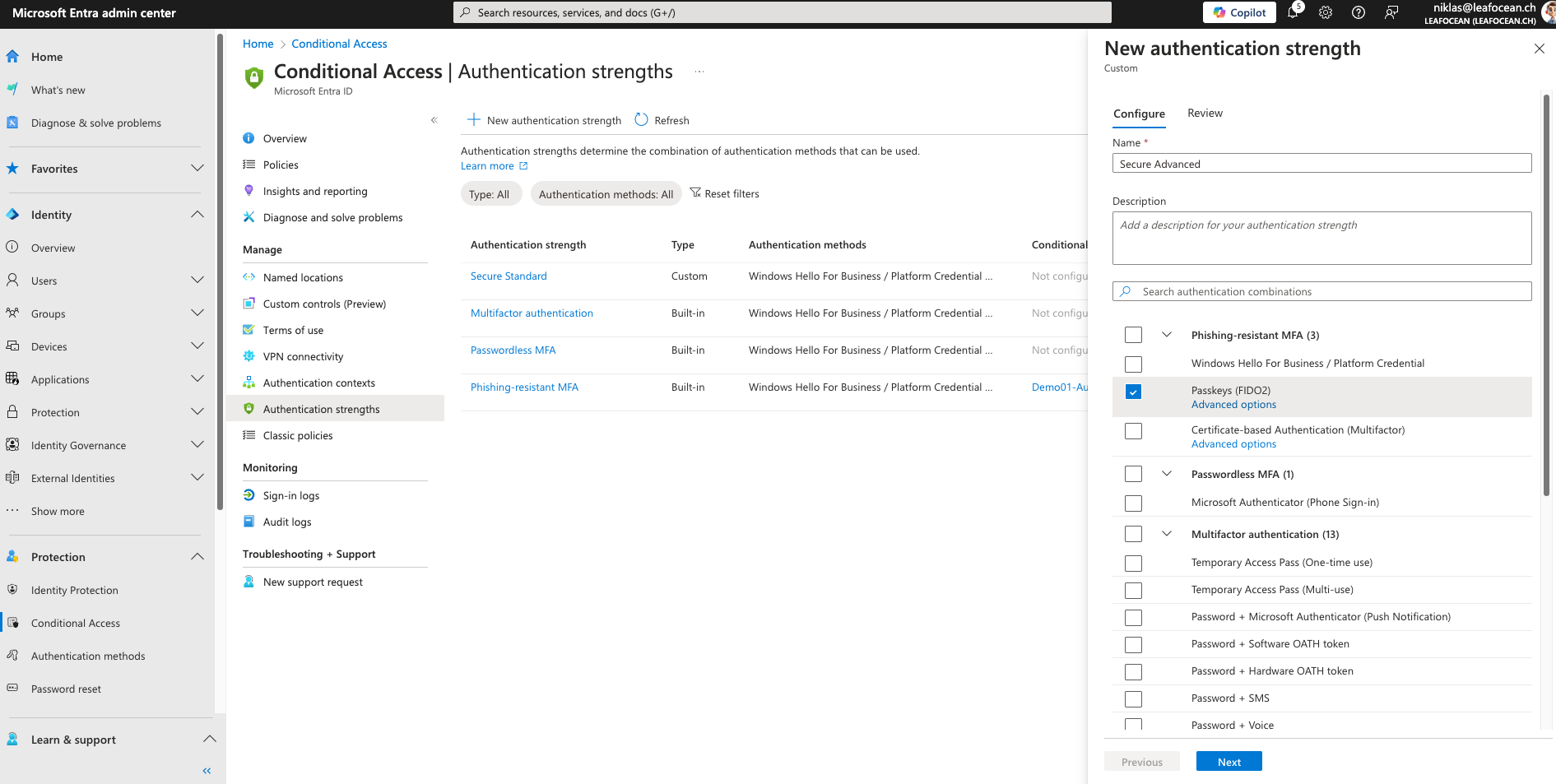
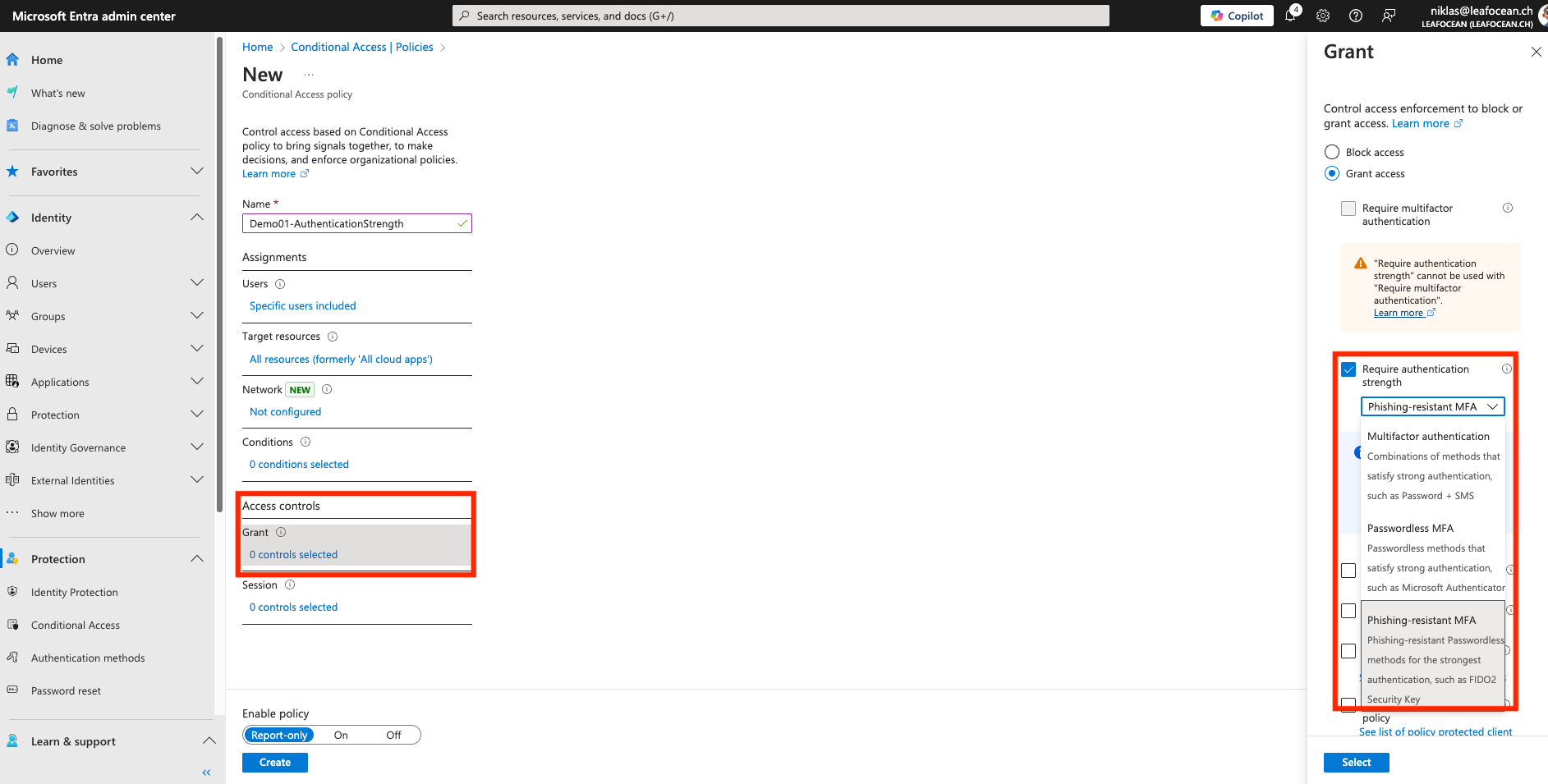
Authentication Strengths empower admins to require certain MFA methods such as passwordless or phishing-resistant methods. Make use of the built-in sets or create custom combinations and use it for the "Grant" enforcement in Conditional Access:
Authentication Context
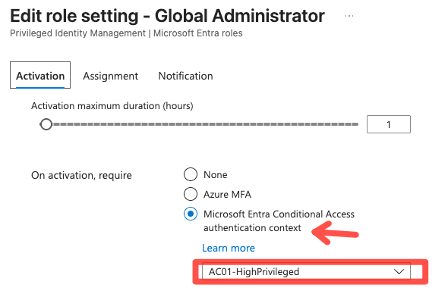
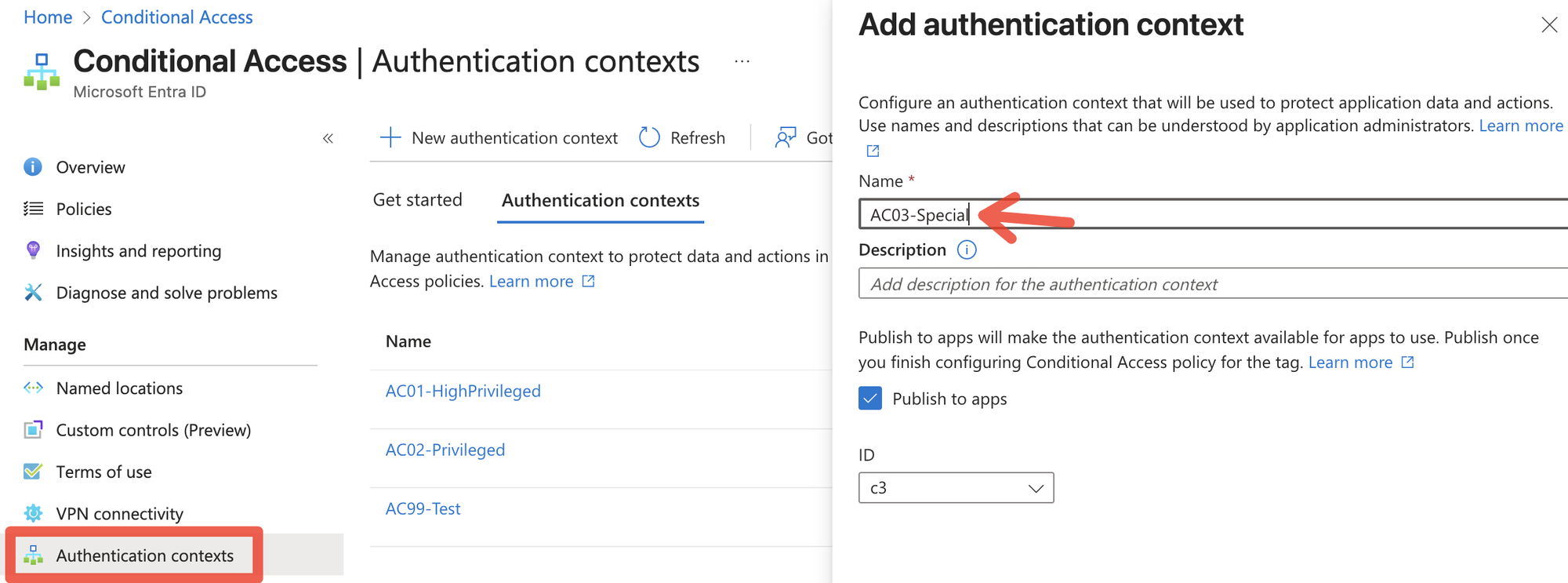
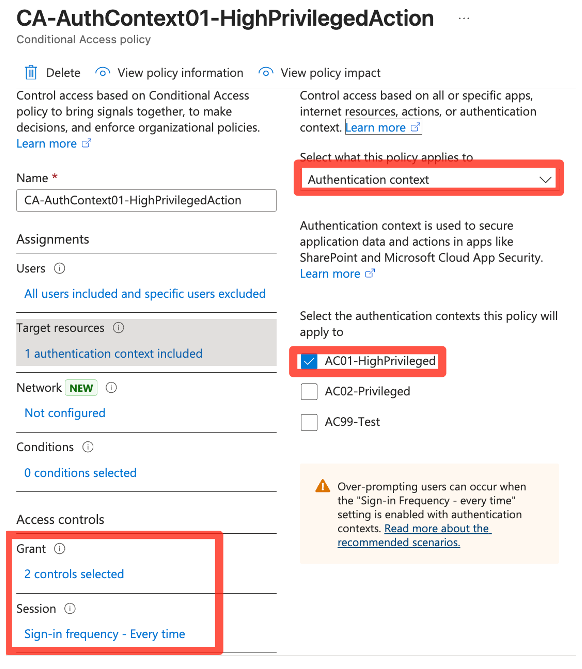
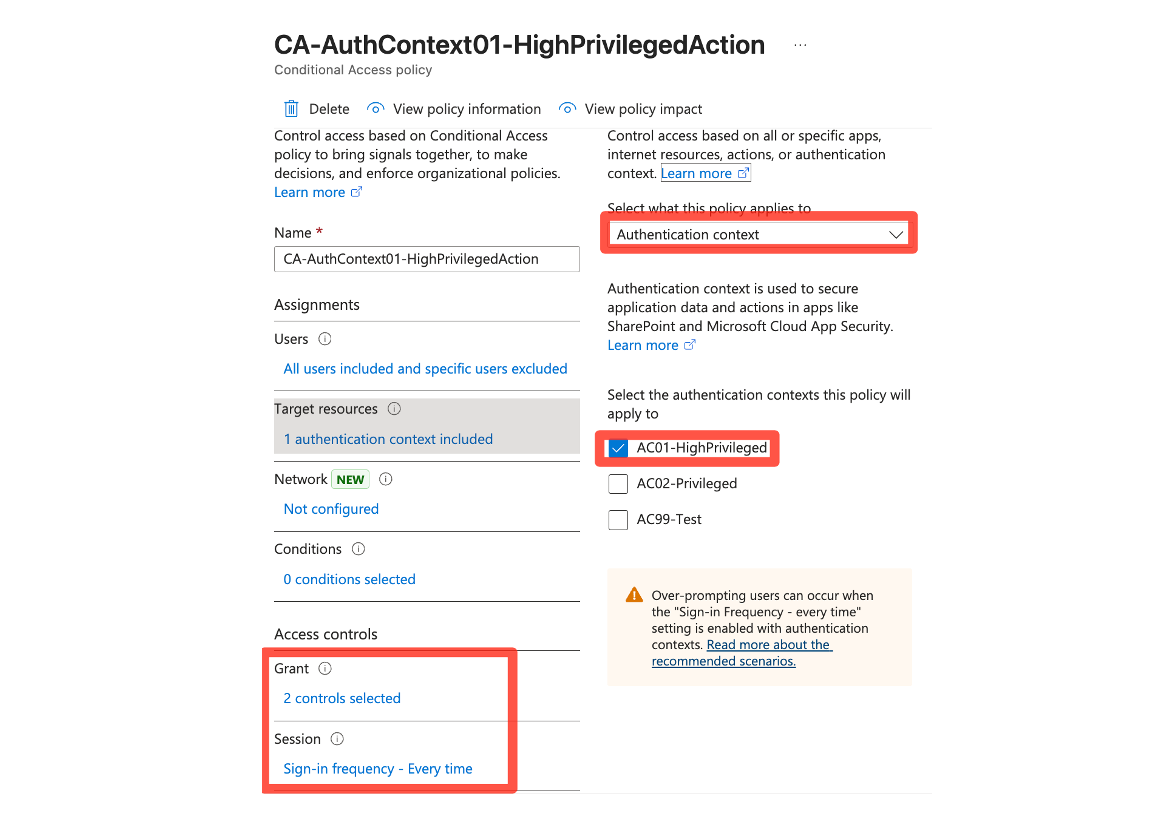
Authentication Contexts are a trigger in Microsoft Entra for administrative tasks that are supported by Protected actions or for admin elevation with PIM. These contexts are triggering Conditional Access which then can enforce certain authentication/session policies.
Protected Actions
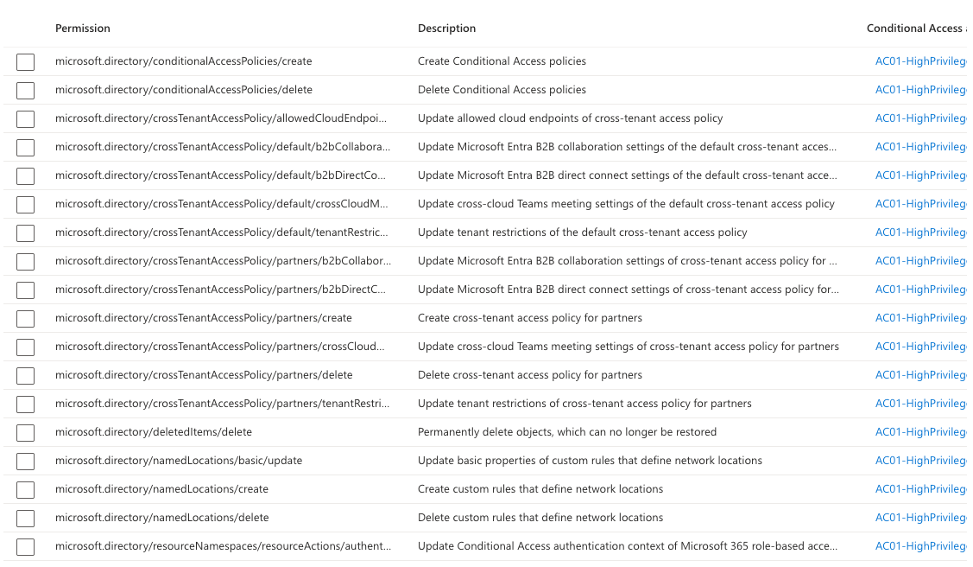
Protected Actions are a set of pre-defined admin actions, that currently cover:
- Conditional Access policy management
- Cross-tenant access settings management
- Hard deletion of some directory objects
- Custom rules that define network locations
- Protected action management
When an admin tries to manipulate (create, change, delete) one of those aspects in Entra, it will trigger the CA policy.
Privileged Identity Management (PIM)
Microsoft Privileged Identity Management (PIM) is an Entra ID Premium Plan 2 feature to secure elevated rights, include approval processes and manage admin roles just-in-time and with just-enough access. Read my dedicated post:
 Niklas Tinner
Use PIM + Authentication Context to require certain conditions when an admin wants to activate a role.

Compliant Device Signal
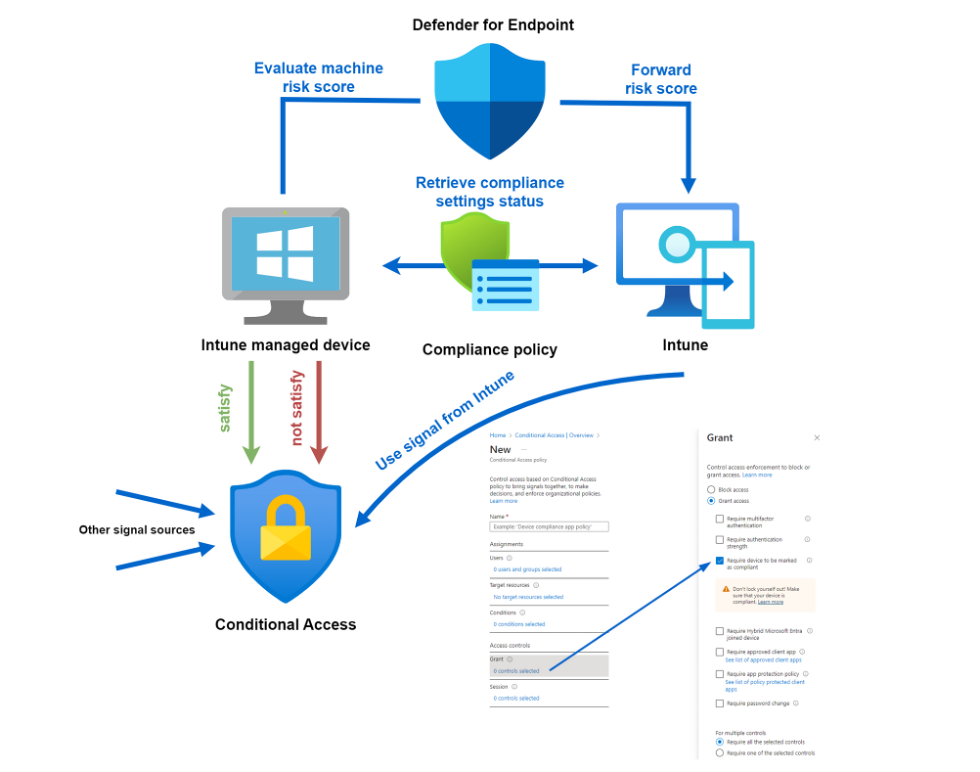
Intune evaluates compliance for its managed endpoints. This signal can be interconnected with Defender for Endpoint and delivers the result to Conditional Access. Read more:
 Niklas Tinner
Device Filters
Device Filters are a condition in Conditional Access that query device attributes during a login flow. It is possible to include or exclude devices that match a certain filter criteria.
This enables new Conditional Access logic that complements the traditional grant and require settings. For example, allowing you to explicitly block all access except for devices that match specific filter criteria.
Identity Protection
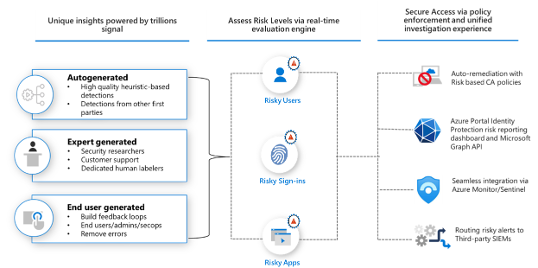
Identity Protection utilizes machine learning to detect and identify anomalies from user behaviors. This feature labels users or sign-ins with a risk score. That exact score can be used in Conditional Access to apply Grant or Session policies.
Token Protection
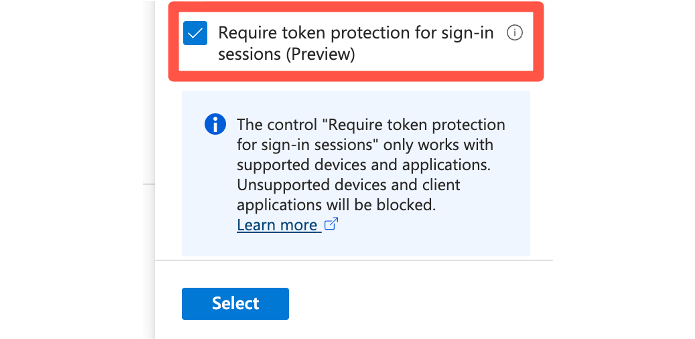
Token Protection, also known as Token Binding, ensures that an access token can only be used by the originally authenticated client. This prevents token replay attacks from other devices if the token is stolen. In Conditional Access, Token Protection is used as a session control to strengthen session security.
Continuous Token Evaluation (CAE)
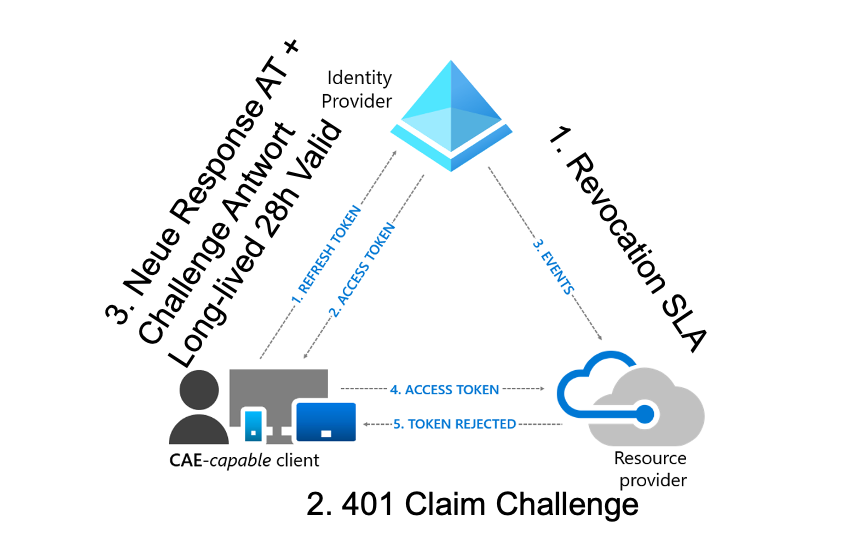
Continuous Access Evaluation allows real-time enforcement of critical policy changes, such as user disablement or token revocation, without waiting for the token lifetime to expire. It leverages event-based signals from Microsoft Entra, such as password changes or risk detections, to revoke access instantly. CAE is by default enabled, but can be sharpened with configuration in Conditional Access to be enforced strictly for location changes.
Session Control with Defender for Cloud Apps
Microsoft Defender for Cloud Apps (MDCA) extends Conditional Access by enabling app-specific session policies in real time. These allow granular controls like blocking downloads, copy/paste, printing, or enforcing step-up authentication. Read my full blog post:
 Niklas Tinner
However, since this feature has remained in public preview for an extended period, thorough testing and validation in your environment is strongly recommended.
powered by Oceanleaf
 Niklas Tinner