
Windows 365 Link: What you need to know
Introduction
Windows 365 Link was announced at Ignite 2024 and has been a hot topic ever since. It establishes the link between a user and his Windows 365 Cloud PC.
With this physical device it is easier than ever before to connect your Cloud PC. Just plug the device in, connect it to the Internet and sign-in. With that workflow users can get productive right away - and even better: multiple users can work at the same desk and connect to their own personal workspace.
Read my announcement post and learn more about the device itself:
 Niklas Tinner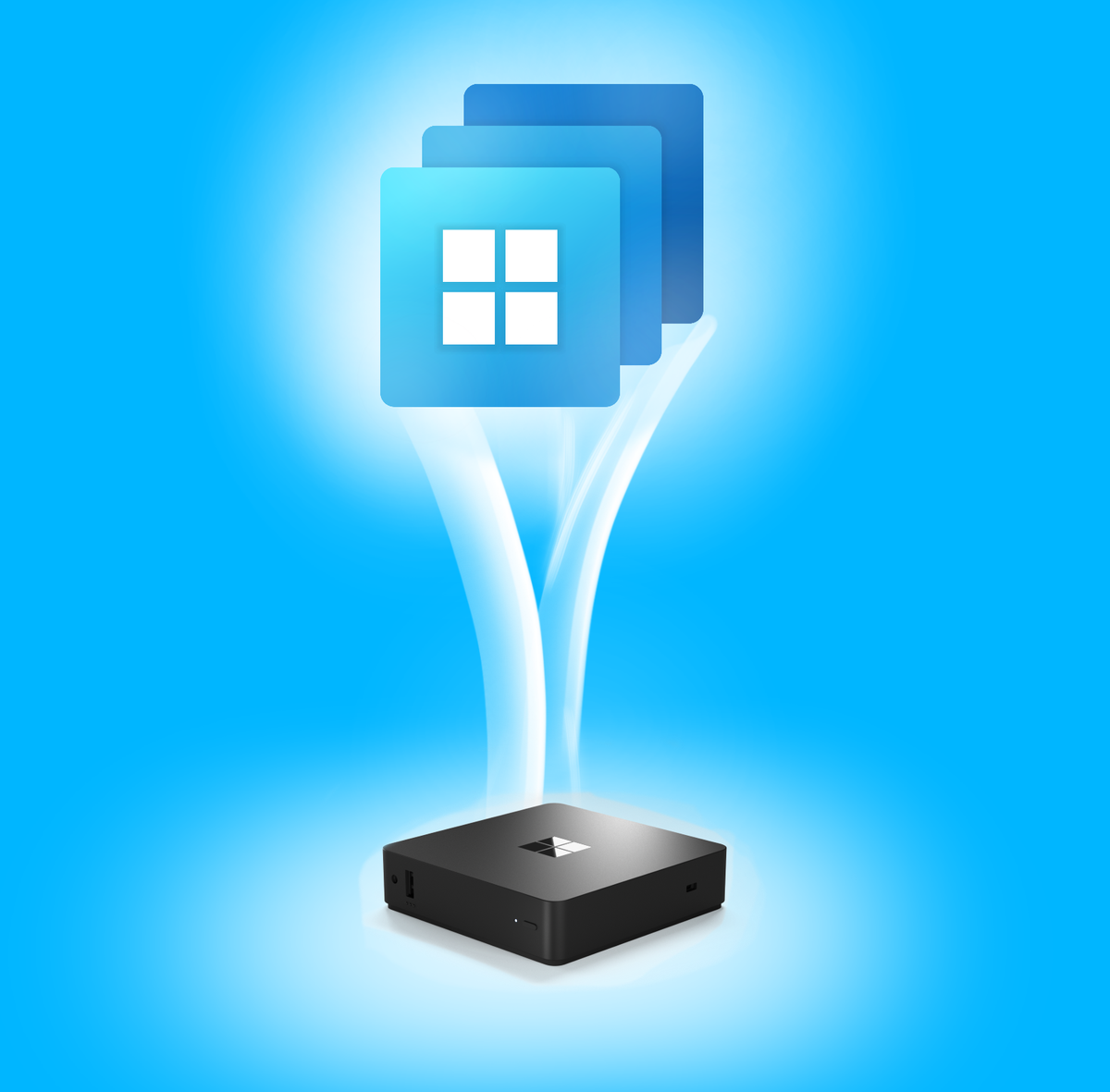
This post focuses on the workflows my personal experience while working on a Windows 365 Link and using it as my daily driver.
Overview
Availability
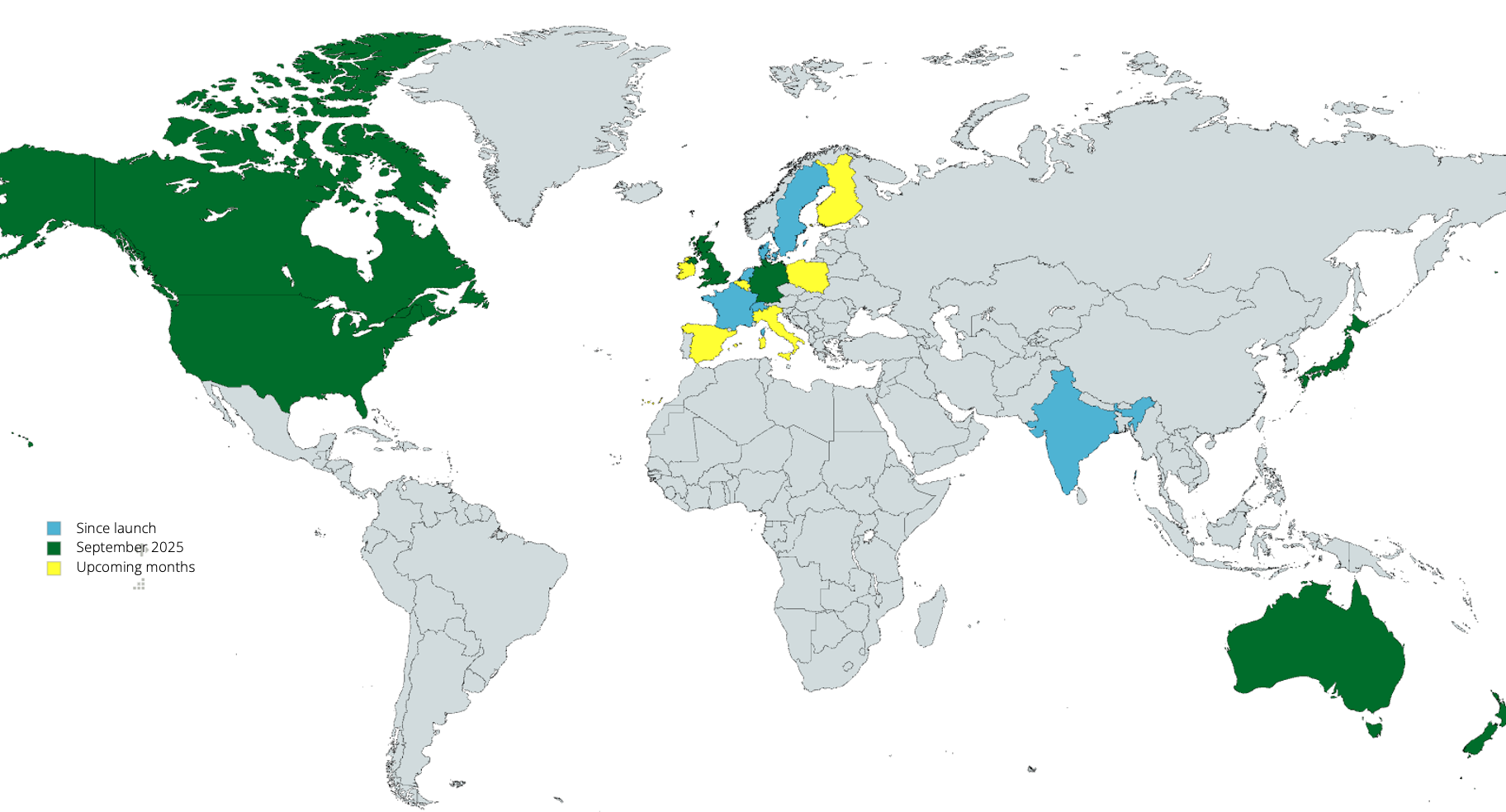
First; let's talk about the market availabilities for Windows 365 Link. Below is a world map as overview. (updated Q4 2025)
Use Cases
- Shared Devices & Hot Desking: Devices used by multiple users, ideal for shift work or rotating teams.
- Frontline Workers: Employees at flexible desks in a production site, call desks or font offices or receptions/check-ins who need fast access to virtual workspaces.
- Temporary Staff / Contractors: External workers can quickly receive a fully managed work environment with controlled access.
- Disaster Recovery: Backup workstations in case of local device or infrastructure failure for seamless access to the cloud environment.
Setup flow
The setup flow is pretty simple and takes less than 10 minutes:
- Unbox and Connect the Device
Remove the device from the packaging, plug it into a power source, and connect it to the internet. 📦 - OOBE Starts
The Out-of-Box Experience (OOBE) process starts automatically and initiates device registration. 🚀⚙️ - Intune Enrollment & Entra ID Join
The device is automatically enrolled in Intune and joined to Entra ID. - Sign in at the Lock Screen
The user can sign in at the lock screen using their corporate account. 👤🔐 - Connect to Cloud PC
After successful sign-in, the user is automatically connected to their Cloud PC. 💻📶
Technical Prerequisites
Check the following prereqs, before starting the enrollment process:
- Windows 365 License / Entra P1 / Intune P1
- Entra MDM-Authority set to Intune
- Network endpoints availability same as for AVD
- Windows 365 Provisioning Policy SSO enabled (Policy configuration)
- Intune Platform/Limit Restrictions (Register corporate device identifier - Windows 365 Link can never be enrolled as personal device.)
- Conditional Access (Impacted cloud apps: Windows Cloud Login, Windows 365, Intune Enrollment)
Intune Management
According to the official documentation the following configuration aspects apply to Windows 365 Link and its own operating system "WCPC".
✅ Supported | ❌ Not Supported |
|---|---|
|
|
„While a CSP in general may be supported, specific policies within it may cover functionality that isn’t enabled on the device. So, certain policies within these supported CSPs may have no effect when applied to a Windows 365 Link device.“ -Microsoft
Best practices
- Use a FIDO2 Key to unlock the device: instead of entering your E-Mail + Password and perform MFA each time, make sure to register a FIDO Key for your users, so they can seamlessly log in and save time. Enable and configure Windows Hello for Business for this. (
- Apply configuration principles from my Windows 365: Intune integration management blog post
- Create a Windows 365 Link security group with the dynamic query:
(device.deviceModel -eq "Windows 365 Link")- Configure the period for screen time-out. (User will be disconnected from his current Cloud PC session - not signed-out)
- Verify your current configuration policy stack. (Especially security baselines)
- Configure "Let apps access your location" in order to apply the right time zone.
- Check your resource redirection settings.
- Configure Microsoft Multimedia Redirection (MMR) for improved video and HTML5 content.
- Use USB dongles instead of Bluetooth for improved connectivity. (Be careful when applying device control policies!)
- Use Ethernet instead of Wi-Fi for improved network connectivity.
- If you have multiple Cloud PC's tab out with CTRL + ALT + DELETE to open the connection center and switch.
Currently, the only available fix is to return the device to Microsoft for servicing, as the WCPC image is not available for public download at this time.
Windows 365 Link as daily driver
From my personal experience working with the device for a few days, I can say that after some initial setup issues, it worked seamlessly. One highlight is the fast connection combined with secure identity authentication through the FIDO key.
I am using a Windows 365 configuration with 4 vCPUs and 16 GB of RAM, which has been performant enough for my needs. My typical workload includes productivity tasks with Microsoft 365 apps (Exchange, Teams, PowerPoint, Word, Excel), as well as browsing various IT platforms and tools.
Watching YouTube works smoothly with MMR, and Bluetooth devices for audio also function without problems. Even Teams calls and conferences run well, thanks to the optimized Teams version.
Occasionally, the device requires a reboot - especially when peripherals are not recognized or when it gets stuck on the login screen. But thanks to the fast startup, this is no problem!
What I like
- Device incorporates simple deployment & operations
- Device boot/startup time is under 1 minute
- Cloud PC connection takes less than 10 seconds
- Modern authentication is enabled at sign-in (MFA, FIDO, Passkey)
What I don't like
- Device is expensive / upfront costs
- Boot issues when wiping the device
- Global experience is low (Community / MS)
- Documentation is not sufficient
powered by Oceanleaf
 Niklas Tinner